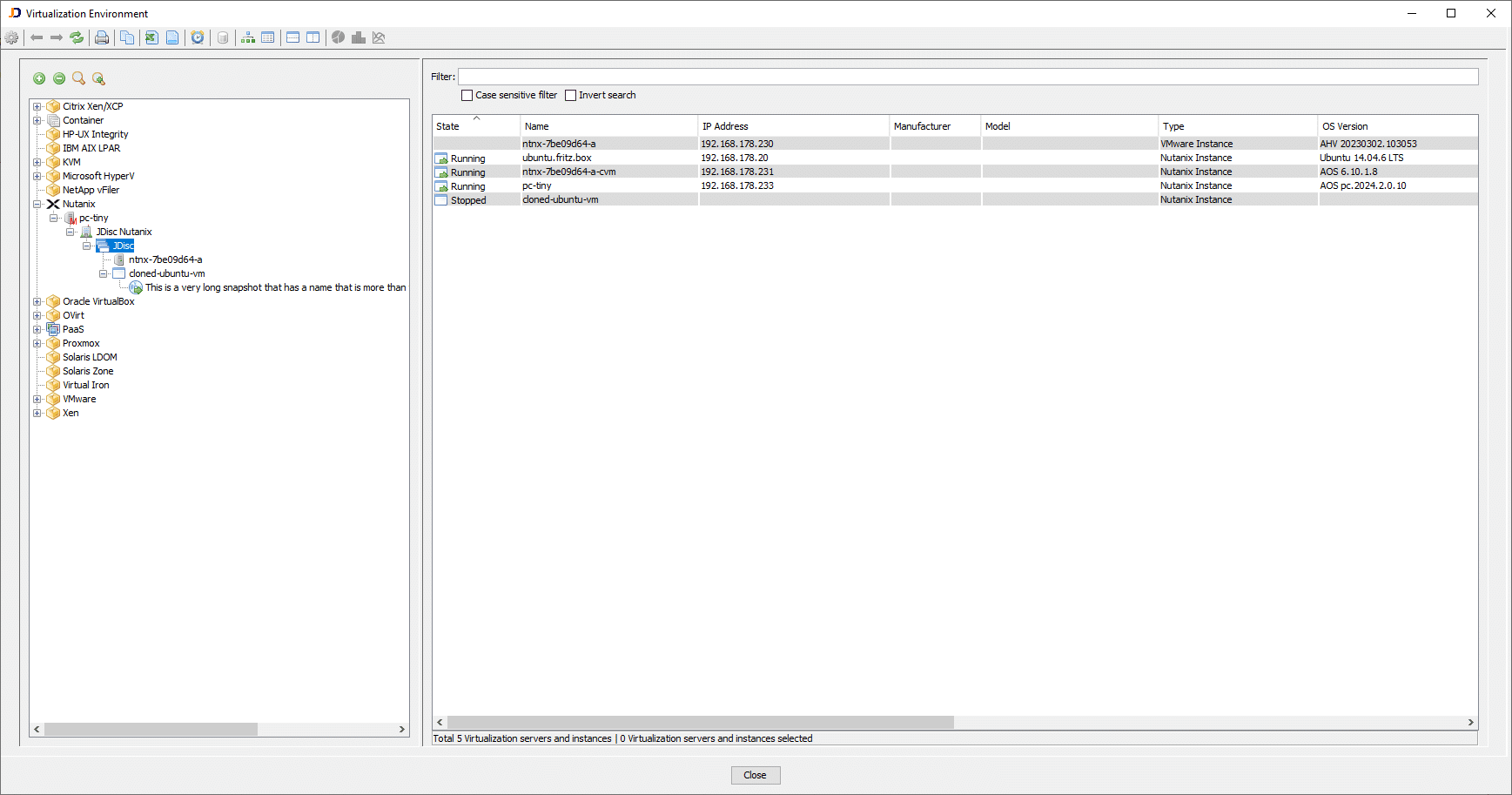


Create a Nutanix Inventory using Prism Central or Prism Elements

Introduction to Nutanix Technology
We have just added support to get a detailed Nutanix inventory. Nutanix is a leading platform for hyperconverged infrastructure (HCI), designed to simplify data center operations through software-defined architecture. It integrates compute, storage, and virtualization resources into a single, scalable system, eliminating the complexity of traditional multi-tier infrastructure.
At the core of Nutanix is the concept of clusters. A Nutanix cluster consists of multiple physical hosts—commonly referred to as nodes—that are tightly integrated to form a unified pool of resources. Each host runs a hypervisor and also includes a specialized virtual machine known as the Controller VM (CVM). The CVM is responsible for managing the local resources of its host and for participating in the distributed system that spans the entire cluster. Together, these CVMs handle storage services, data replication, high availability, and resource optimization across the cluster, making the infrastructure resilient and highly efficient.
To simplify management across multiple clusters, Nutanix offers Prism Central. This centralized management solution enables IT administrators to monitor, configure, and orchestrate all Nutanix clusters from a single user interface. Prism Central aggregates data from various clusters, providing insights into performance, capacity planning, and automation tasks. It serves as the control plane for managing virtual machines, storage, and applications at scale, and it plays a key role in enabling advanced features like analytics, reporting, and policy-based governance.
 Figure: Nutanix Architecture
With the new support in JDisc Discovery for scanning Nutanix environments via the Prism Central APIs, users gain comprehensive visibility into Nutanix clusters, including details about the physical hosts and virtual machines, streamlining asset discovery and IT documentation.
Creating a Nutanix Inventory
Scanning Nutanix environments with IP Scanner JDisc Discovery is based on integrating with the Prism Central APIs. These APIs provide an overview of the Nutanix infrastructure by exposing information about:
- The clusters managed by the Prism Central instance
- The physical hosts assigned to those clusters
- The virtual machines running on those physical hosts
However, unlike the VMware APIs, the Nutanix Prism Central API has limitations when it comes to detailed hardware-level information. It does not expose low-level hardware attributes such as the physical host’s serial number or other BIOS-level details.
To retrieve a complete and accurate inventory of a Nutanix environment, it is necessary to combine multiple data sources:
- API access to the Prism Central instance to retrieve high-level information about clusters, hosts, and VMs
- SSH access to the physical hosts to query hardware-specific data directly from the host’s operating system
- SSH access to the CVMs to extract cluster-level and host-specific information using Nutanix console commands
Only when all three data sources are accessible – Prism Central API, physical host SSH, and CVM SSH – can a full and detailed inventory be generated. If any of these access methods are missing, the inventory will be incomplete and certain hardware or configuration details may not be available.
This architectural limitation is inherent to the Nutanix API design and must be considered when planning the discovery of Nutanix infrastructure.
Configuring Nutanix Inventory
To ensure a comprehensive inventory of Nutanix environments in JDisc Discovery, several configuration steps must be completed to provide the necessary access credentials for all relevant components.
Start by entering the credentials for the physical hosts. These credentials are required to connect via SSH and collect detailed hardware information that is not available through the Nutanix APIs. You must provide:
- SSH login credentials (username and password or SSH key)
- Either the sudo password for privilege escalation or direct root access
This step is essential to gather low-level data such as hardware serial numbers, BIOS versions, and other platform-specific attributes.
Next, configure access to the Nutanix Prism Central installation:
- Open the discovery settings in JDisc Discovery
- Navigate to the Virtualization Manager tab
- Add a new entry for the Nutanix Prism Central server by providing the following:
- A descriptive name for identification
- The target address (hostname or IP address)
- Port number used for API communication (typically 9440)
- API access credentials (username and password)
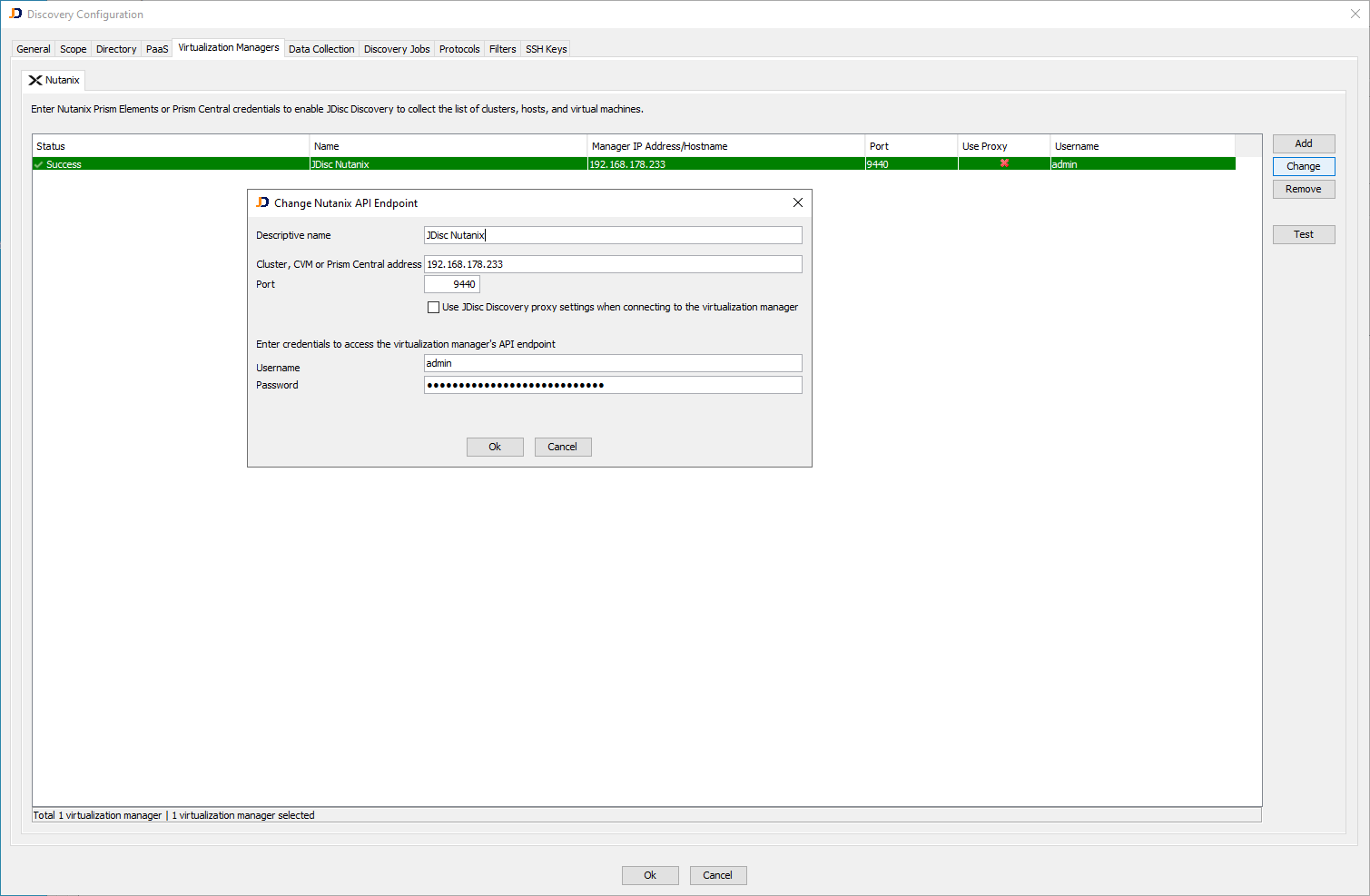
Figure: Configuring Nutanix Prism Central Access
After saving the configuration, you can initiate a scan. When the IP address of the Prism Central server is scanned, JDisc Discovery queries the Prism Central API and retrieves available information about:
- All clusters managed by the Prism Central instance
- Physical hosts assigned to those clusters
- Virtual machines running on the hosts
This setup enables a streamlined discovery process. However, keep in mind that API access alone will not provide a complete hardware inventory. For the most accurate and detailed results, combine the Prism Central API with SSH access to the physical hosts and the CVMs.